
Connect Your ChatGPT Client
An administrator connects ChatGPT to EBSCOhost AI Exchange by creating an app named EBSCOhost in ChatGPT's Workspace settings and publishing it to the workspace. In ChatGPT, connectors appear as apps.
What You Need
- Administrator access. You need administrator access for your ChatGPT workspace. Only Admins and Owners can publish apps.
- Developer mode. Developer mode must be on for your account. See OpenAI's documentation for how to turn it on.
- A Client ID. EBSCO provides a unique Client ID.
- The MCP URL. The MCP URL is
https://mcp.agents.ebscohost.com/mcp.
Custom apps are available on ChatGPT Business, Enterprise, and Edu plans. They work in ChatGPT on the web, not in the mobile apps.
Create the App
-
Sign in to ChatGPT with an account that has administrator access for your workspace.
-
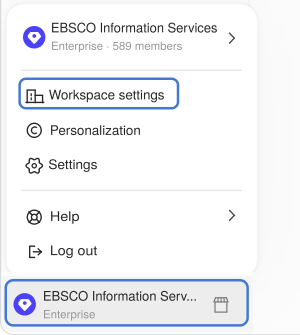
Click your workspace name in the lower left, then click Workspace settings.
-
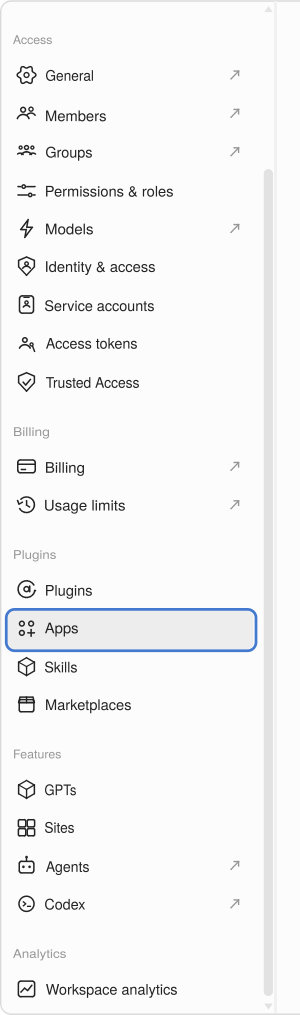
Click Apps on the bottom left.
-
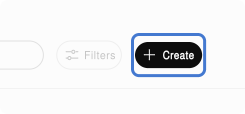
Click Create.
-
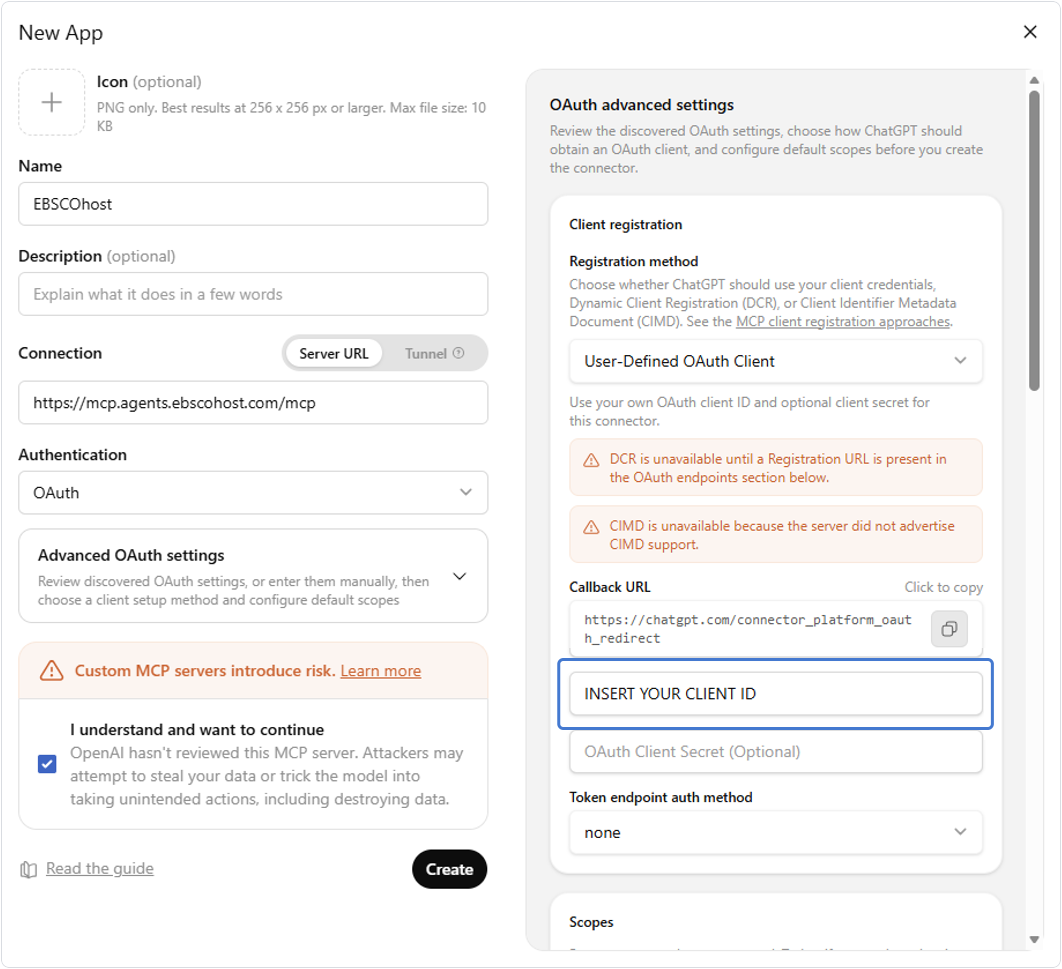
Enter EBSCOhost in the Name field and the MCP URL in the Connection field:
https://mcp.agents.ebscohost.com/mcp. Check I understand and want to continue. You can also add an icon and a description.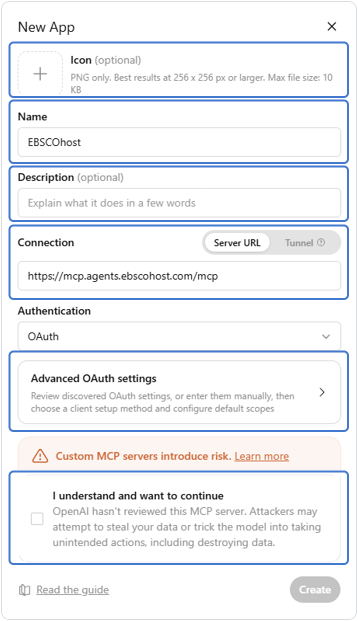
-
Click Advanced OAuth settings to open the panel on the right. Enter your Client ID in the OAuth Client ID field.
-
Scroll down in the panel and clear OIDC enabled. Click Create.
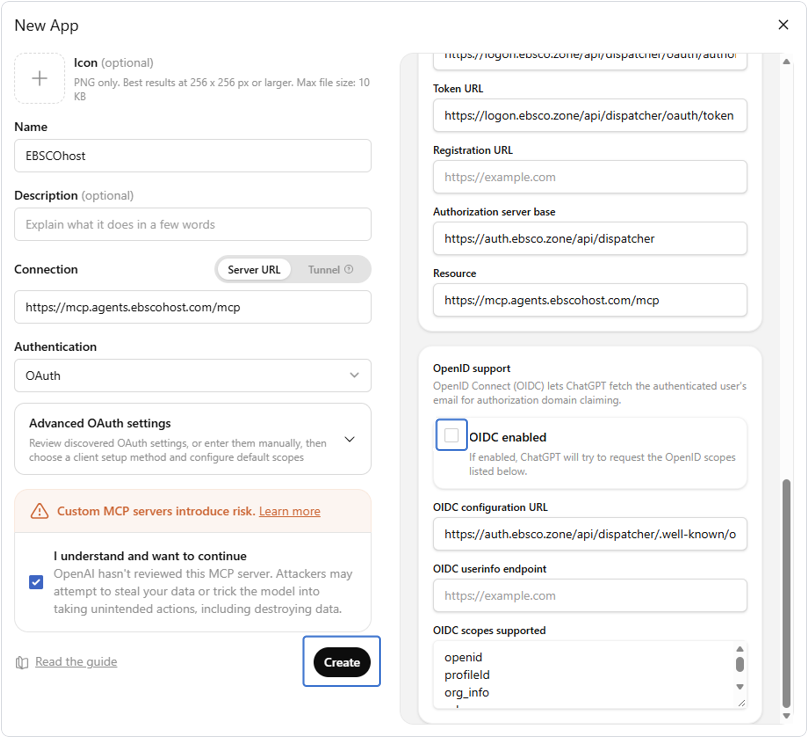
ChatGPT returns you to the Apps screen.
Publish the App
-
On the Apps screen, click the Drafts tab. After a short delay, the app appears there. Click Publish next to the EBSCOhost app.
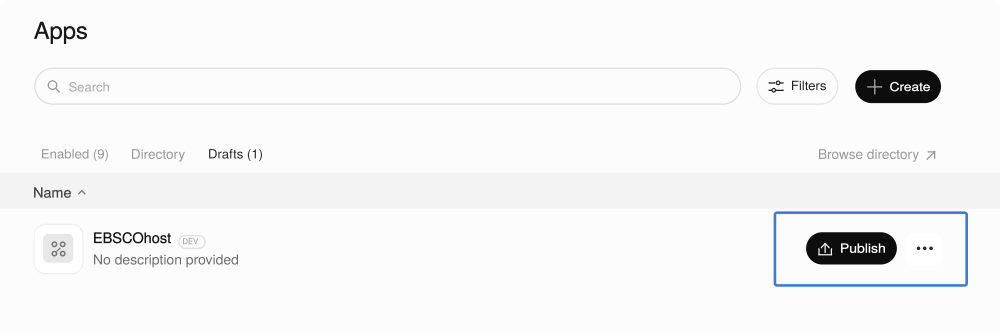
A Publish dialog opens.
-
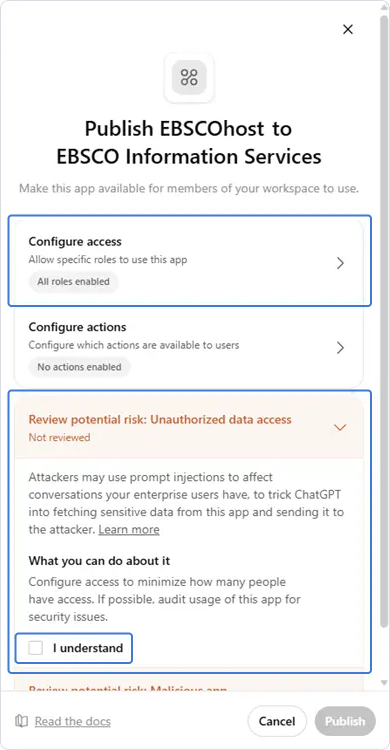
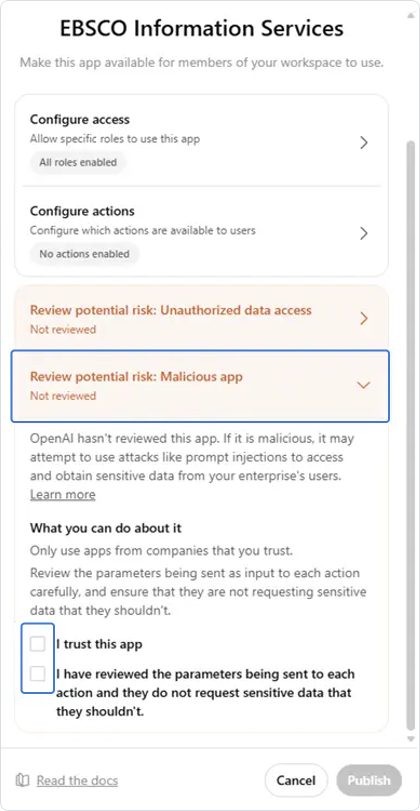
Use Configure access to limit the app to certain roles. This step is optional. Check I understand under Review potential risk: Unauthorized data access.
-
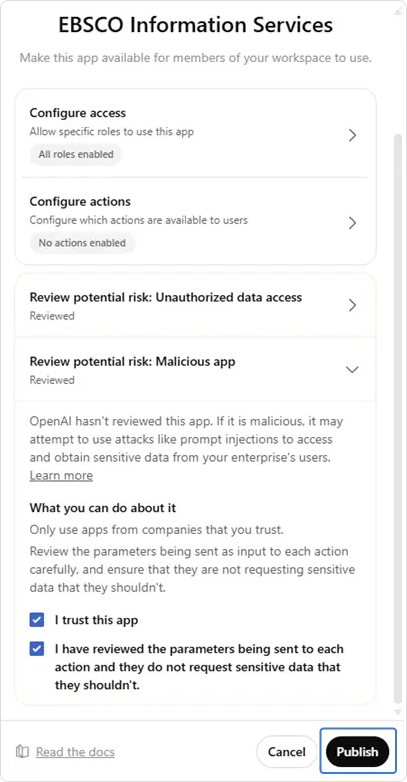
Under Review potential risk: Malicious app, check both boxes.
-
Click Publish.
After You Publish the App
Once the app is published, members can find it under Apps in their own ChatGPT settings. It has a custom label next to its name.
Keep the App Current
ChatGPT keeps a snapshot of the app's tools from when an administrator approved it. Changes to the tools are not applied until an administrator refreshes the tool list in Workspace settings > Apps.
Test the Connection
To confirm the connection works, see Test Your ChatGPT Implementation.
Updated 4 days ago