
Connect your Claude Client
An administrator connects Claude to EBSCOhost AI Exchange by adding a custom connector named EBSCOhost in Claude's Organization settings.
What You Need
- Owner access. On Team and Enterprise plans, an Owner or Primary Owner adds the connector for the organization. On Enterprise plans, a member whose custom role includes managing the organization's libraries can also add it.
- A Client ID. EBSCO provides a unique Client ID.
- The MCP URL. The MCP URL is
https://mcp.agents.ebscohost.com/mcp.
Add the Connector
-
Sign in to Claude with an account that has Owner access for your organization.
-
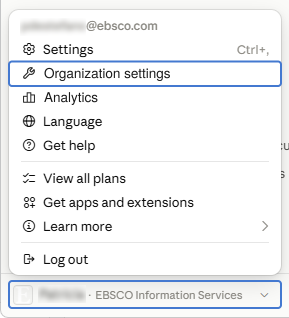
Click your name in the lower left, then click Organization settings.
-
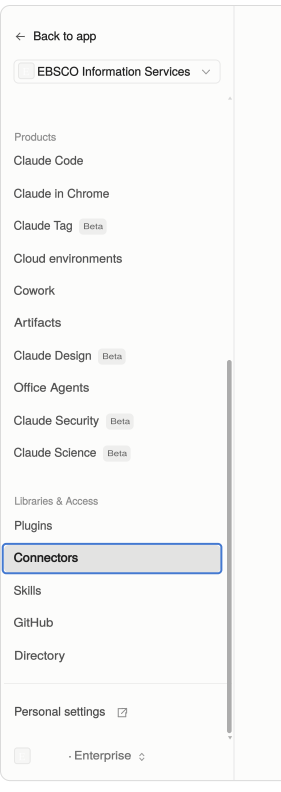
Click Connectors on the bottom left
-
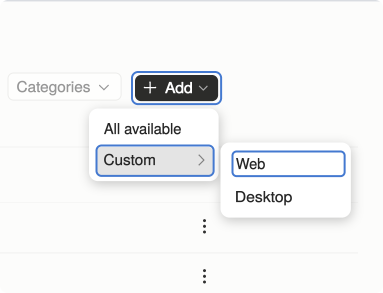
Click Add, Custom, and Web in the upper right corner.
-
Name the connector EBSCOhost and enter the MCP URL.
-
Click Advanced settings and enter your Client ID. You can't change it after you add the connector, so check it before you continue.
-
Click Add.
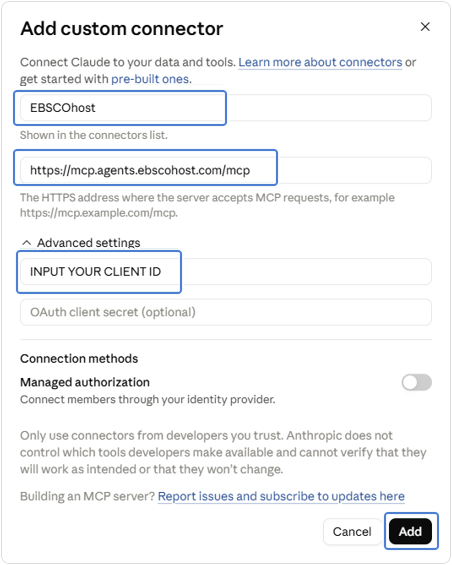
Dialog Layout VariesThe layout of the dialog varies by organization. If yours has two steps instead of Advanced settings, choose Use your own OAuth client and enter your Client ID there. See Anthropic's documentation for the other options.
After You Add the Connector
After you add the connector, it appears for members under Customize > Connectors with a Custom label. Each member clicks Connect to sign in with their own account.
Change or Remove the Connector
You can edit a connector's name or URL. To change its authentication settings, remove the connector and add it again. Members then need to reconnect.
Test the Connection
To confirm the connection works, see Test Your Claude Implementation.
Updated 4 days ago